 Shottan
Past captures, by month.
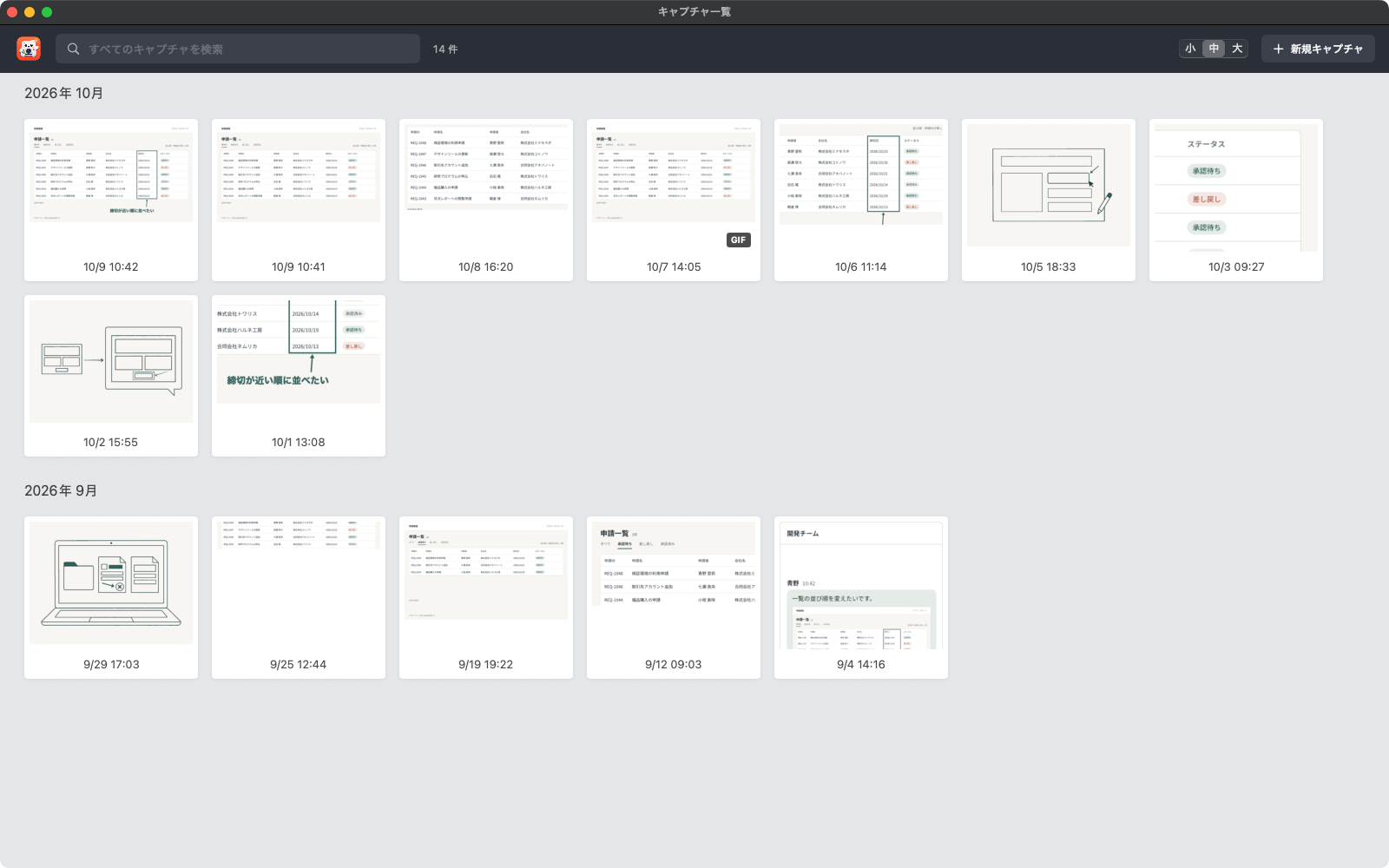
Browse the images, GIFs and MP4s in your save folder by month, and search by file name.
Make your screenshot say it.
Show exactly where to look. Launch straight into region selection, add an arrow or a note right after capture, and paste the image into your conversation. Need motion? Record part of the screen as a GIF or MP4.Captures are saved on your Mac. Shottan never uploads them.
Captures are saved on your Mac.
Shottan never uploads them.
Record part of the screen.
Trim the ends, save as GIF or MP4.
Arrows, boxes, text, mosaic.
Annotate the capture in place.
Down to where they should look
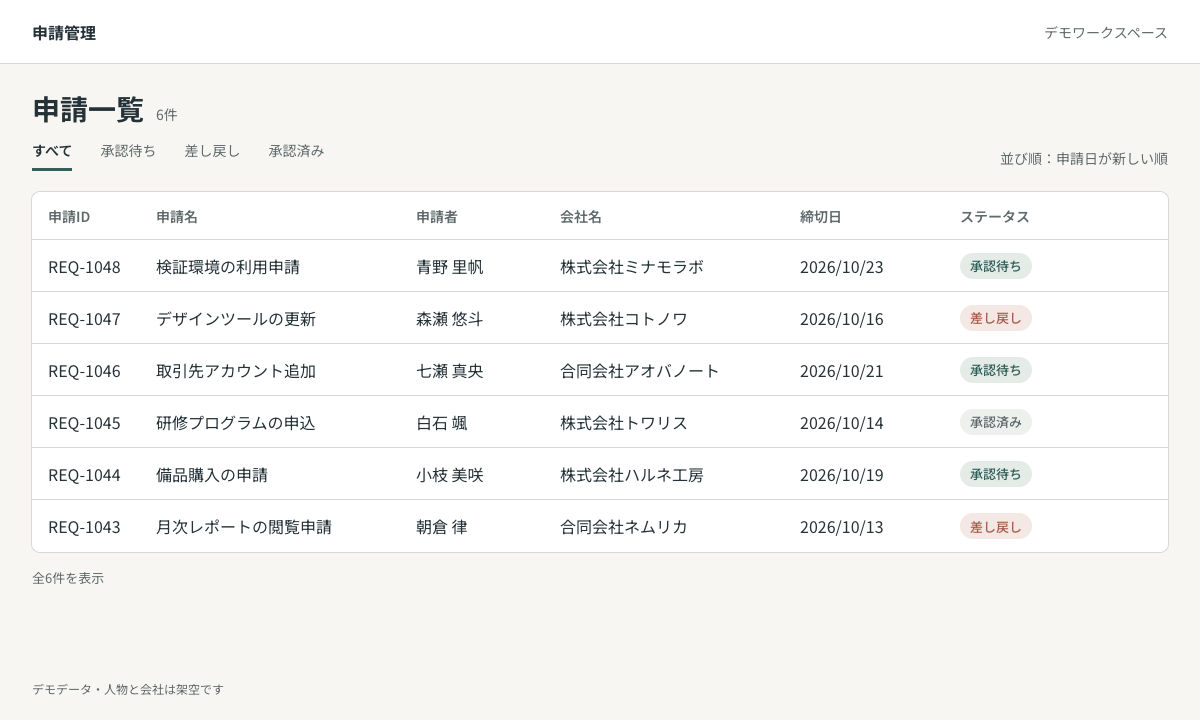
A plain screenshot often fails to say where to look. Box the spot that matters and add a few words about what should change.
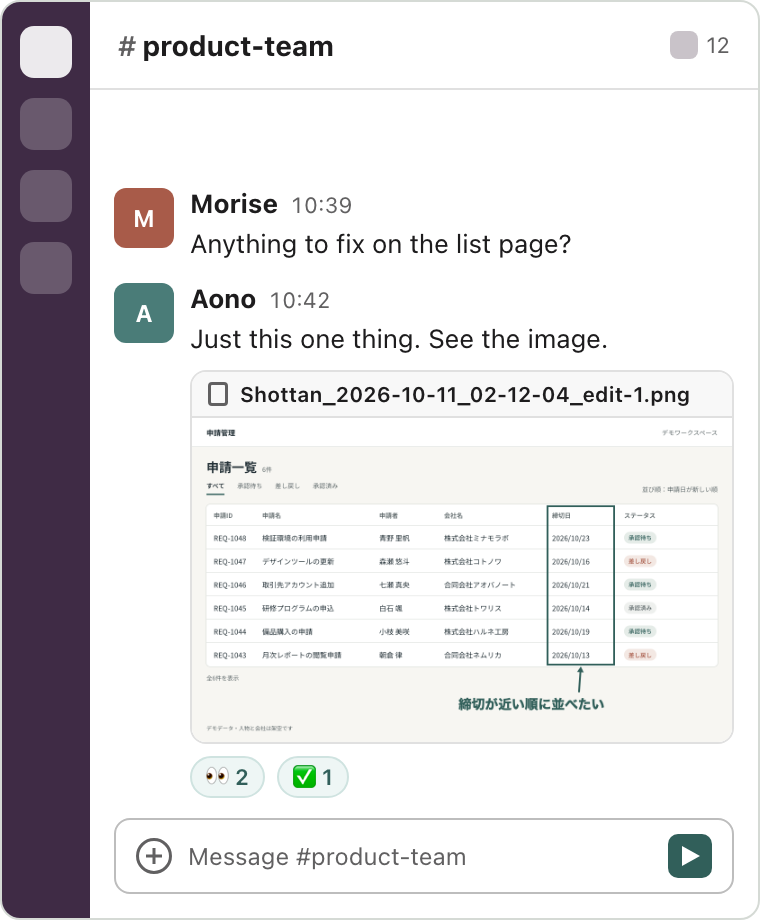
Copy the image into the conversation, and everyone is looking at the same place.
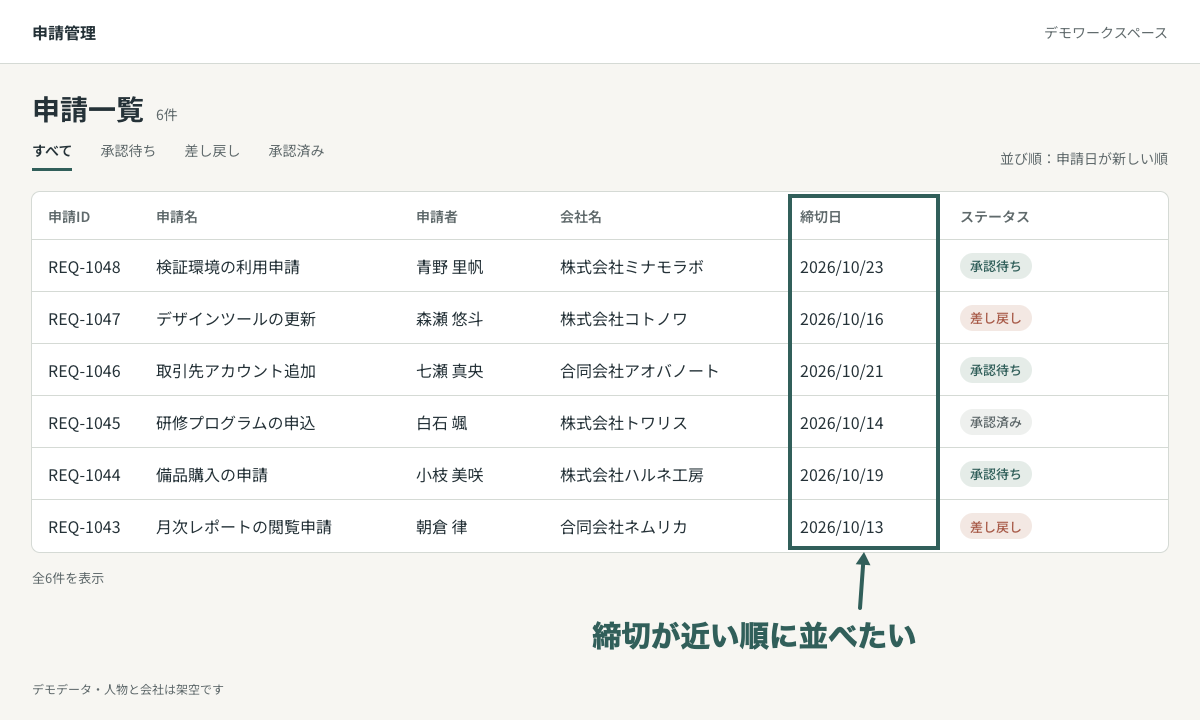
From capture to annotation
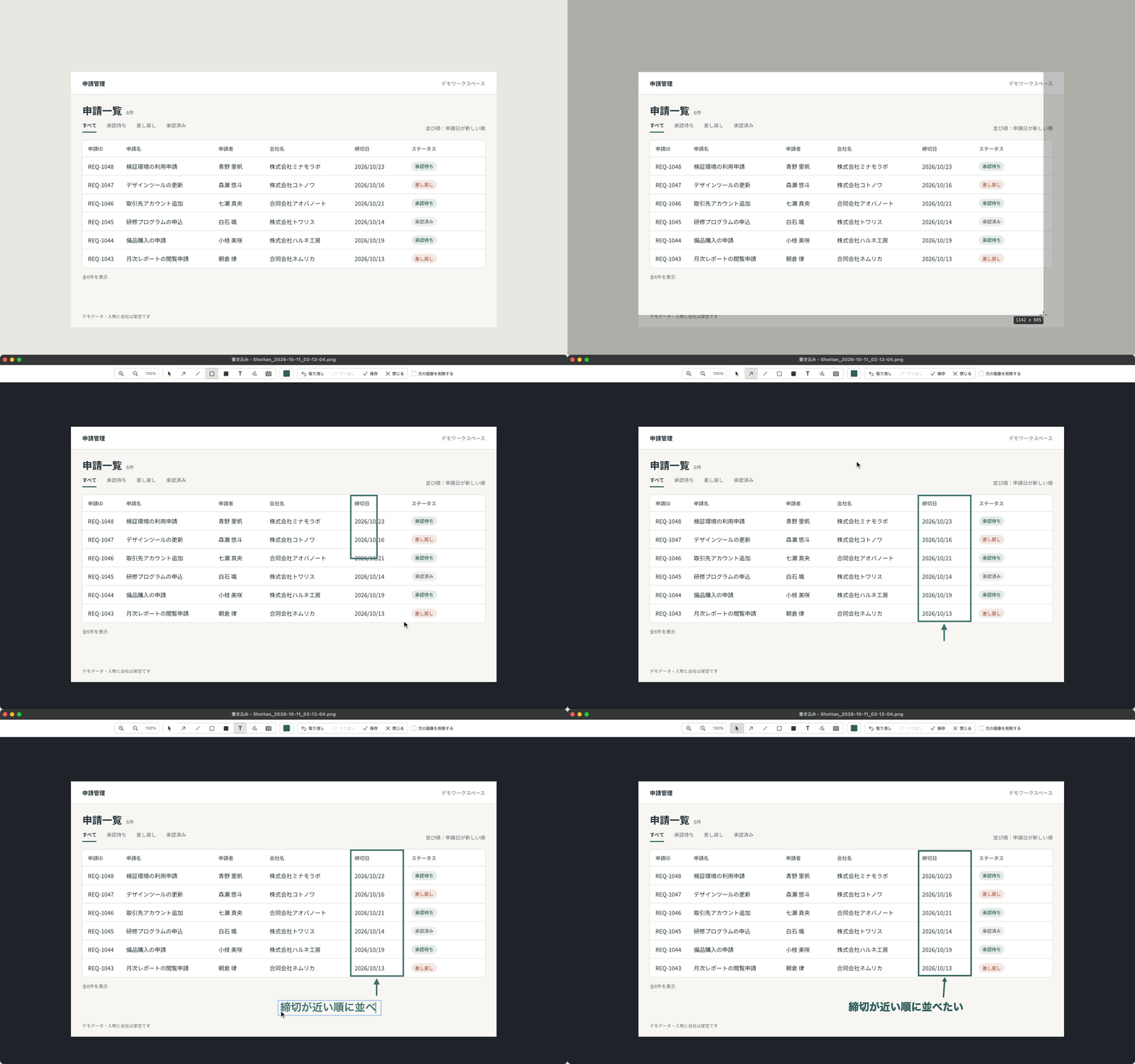
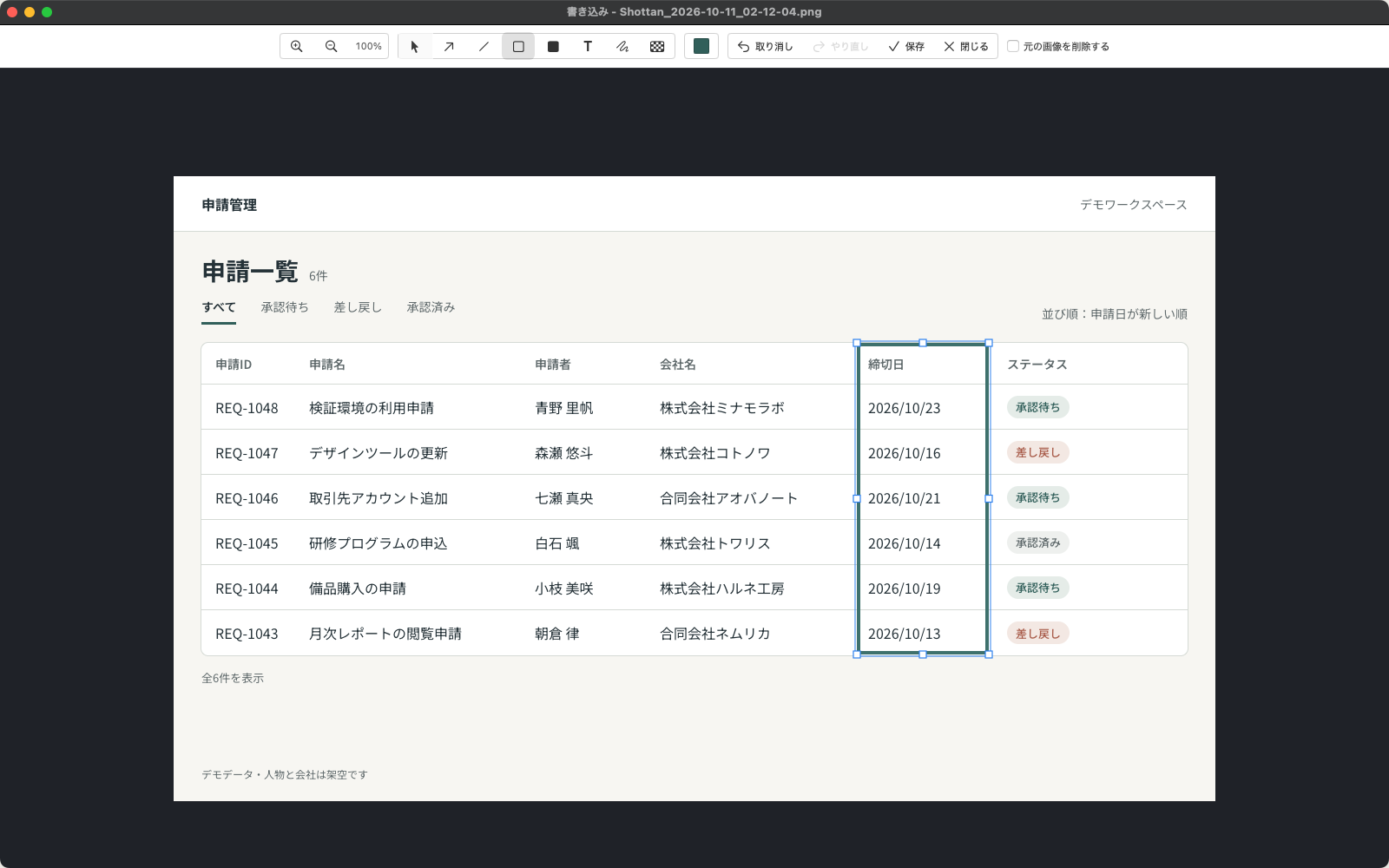
Select a region and the detail window opens. Choose Edit to annotate the image in place.
Point with an arrow, box what matters, add text, hide with mosaic. The annotated image is saved as a separate file; the original stays by default.
Editing tools
Choose Copy Image to paste into a conversation. Slack, Discord, email, and AI assistants all take it.
Share copies Markdown that references the file on your Mac. It is for notes and tools that read local files, not a sharing URL.
See it in action
Capture, annotate, copy the image. Then browse the gallery and trim a GIF, all on the real screens.
From region selection to annotation, copy, the gallery, and GIF trimming.
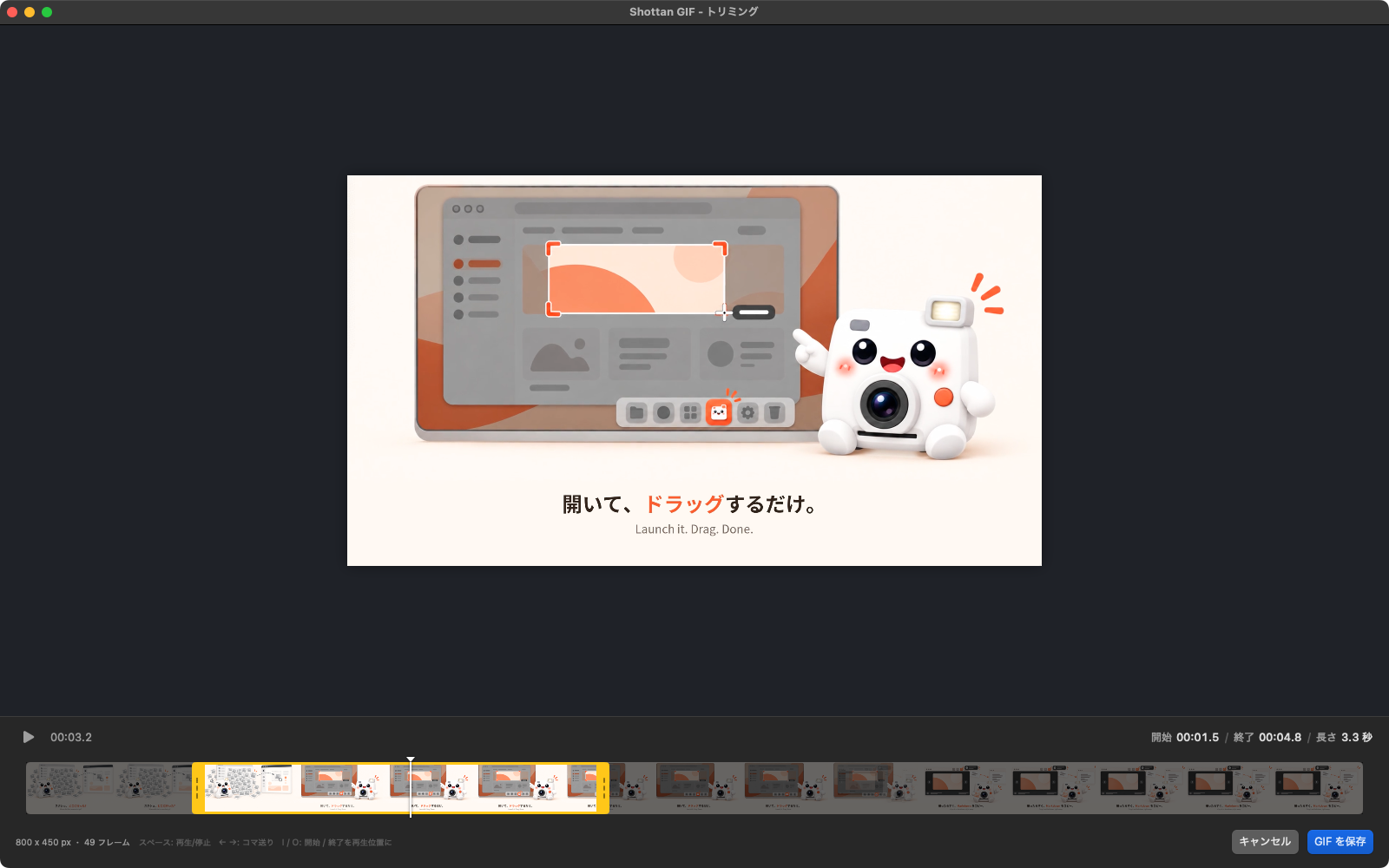
The flow: select a region and capture, open Edit from the detail window, box the deadline column, add an arrow and the note 締切が近い順に並べたい (sort by nearest deadline), save as a separate file, and paste with Copy Image. Then search in the gallery and trim a recording in Shottan GIF.
Stored where you are
They are kept safely on your Mac, and only there.
Captures, GIFs and MP4s are saved to the folder you choose. No Shottan account, no uploads, no usage tracking.
To share, you pick the image and copy it yourself. If the folder is synced, or you paste into an outside service, it travels through that service.
Look back, show motion
For finding an earlier capture, and for the things a single image cannot explain.
Browse the images, GIFs and MP4s in your save folder by month, and search by file name.
Select a region and record with the companion app, Shottan GIF. Trim the ends, choose GIF or MP4, and it lands in the same folder.
Use cases
Show a developer the bug on screen
Point out what to change in a design
Ask an AI about what is on your screen
Put step-by-step images in a manual or doc
Show a flow of actions as a GIF
Share with personal details hidden
Before you start
Storage, sharing, originals, and how to get it.
Shottan never uploads images or videos. They are saved to the folder you choose, and no usage data is collected. If that folder is synced (iCloud Drive, for example), or you paste an image into an outside service, it travels through that service.
Choose Copy Image and paste it into a chat or document. There are no sharing URLs. The Markdown copied by Share references a file on your own Mac, so sending it as-is will not share the image.
No. The annotated image is saved as a separate file and the original stays by default. If you tick “Delete the original”, the original is moved to the Trash after saving.
Shottan is coming soon to the Mac App Store. Once released, the buttons on this page will take you there. It requires macOS 14 or later and installs two apps, Shottan and Shottan GIF. Screen Recording permission is required on first capture. The app interface is in Japanese.
On your Mac
Coming soon on the Mac App Store. Once released, this button takes you there.
macOS 14 or later. Installs two apps, Shottan and Shottan GIF. Screen Recording permission is required on first capture. The app interface is in Japanese.